Showing posts with label programming. Show all posts

Sunday, January 04, 2026

Computing setup, software focused

Windows

My company gives software/firmware developers a very capable Windows laptop.  It's got 32 cores, 64 GB of memory, and a 500 GB SSD to which I was able to add another 2 TB SSD.  There are a couple downsides to this machine -- it's kind of heavy and the corporate IT team has this laptop very locked down.  All software installed on it must be on the approved software list which I understand.  It makes it harder to use my corporate laptop as a good development environment though.  I compensate by using Linux machines for the actual development work and relegating the Windows machine to acting as a terminal plus using it for web browsing and corporate communications tasks such as email, Teams, and Slack.  I was able to install VMware which allows me to use the laptop to run Ubuntu Linux VMs which are used for occasional software builds and to host some FPGA development tools to program the firmware I develop onto the embedded hardware it targets.

  • Vim - I've been using Vi/Vim as my editor of choice since I took a job which gave me a Sun workstation on my desk.  I've got friends who love various editors such as Emacs, Visual Studio, Notepad+, Atom, and a few others.  I've occasionally experimented with other editors but it's really hard to overcome the muscle memory which comes from using Vi for 35 years.  The benefit is I'm still using a few macros I created that long ago.  I prefer GVim, the GUI version of Vim for its ability to resize windows.
  • Putty - I've got Putty profiles for all the Linux machines which I connect to regularly.  Each includes X11 forwarding which gives me the ability to launch X11 apps on any of the Linux hosts I access.  I know that Wayland is more modern but most of the Linux machines I'm accessing run old enough versions of Linux to make Wayland too much trouble to try to use.  Putty supports both SCP and serial connections, making it a handy way to connect to serial console ports.
  • WinScp -  This is a great little network file transfer program which supports the SFTP and SCP protocols.  I often use one Linux host to build my software and another to install it so being able to easily transfer files is a necessity.
  • VcXsrv -  Since so many of the tools I use require an X11 connection, I need to run a X11 server on Windows.  I actually petitioned our IT group to add this to the approved software list.  It can be a little buggy at times but getting free software approved is always much easier than asking for commercial software be added to the budget.
  • TeraTerm -  Believe it or not, sometimes I need to transfer files to an embedded machine which only offers a serial connection.  TeraTerm supports ZMODEM transfers which makes exchanging binary files much easier in that case.
  • Kdiff3 -  Capable free GUI file/directory comparison tool and one of the few allowed on my work laptop.
  • Microsoft Outlook - Outlook seems to work adequately for basic email and scheduling needs.  It has a terrible search feature which makes it difficult for me to find past emails I need to reference.
  • Microsoft Teams - I have never cared for Teams but it's a necessity to allow me to join meetings while working from home.
  • Slack - Most of the time this is okay but it's very quirky.  It's a necessity to allow easy connections to people while I'm working from home. 
  • Google Chrome - It's the browser chosen by our corporate IT team.  I guess it's a necessity since it's captured the majority of the browser market but I must admit that I've never really cared for its UI. 
  • Windows Calculator -  Having a calculator capable of hexadecimal and binary operation is a necessity at times.

 Linux

All of the embedded devices I work with run some version of Linux.  Some actually have multiple copies running on different CPUs.

  • Vim - Vim comes preinstalled on all the Linux machines I need to access.  I do often still install Gvim to make it easier to edit files over an X11 connection.
  • Putty - I manually install Putty on Linux machines.  It makes it easy to connect to devices on the Linux machine which use a serial port.  It's also handy to do that via an X11 connection.
  • GNU Screen - Screen makes it very easy to maintain a persistent connection to a machine which is necessary as some of the firmware builds take over an hour and network hiccups used to kill the build before it was done.  Screen allows me to reconnect after the network issue and see the build continuing as if no interruption had occurred.
  • Exuberant Ctags - I've been using ctags to make navigation through unfamiliar code easier for 30+ years now.
  • Ack - Ack allows me to do a recursive search for files which contain some string and to limit that search to source files or some other category such as Bitbake files.  I use the ack executable which is implemented as a single perl module which makes it trivially easy to install on Linux machines.  I know there are faster source search tools available but this one is easy to use and works well for me.
  • Kdiff3 -  Capable free GUI file/directory comparison tool.
  • xxd -  Sometimes I need to examine binary files and this tool is readily available on Linux machines.  It can also help transfer binary files in a pinch by converting a file to its hexadecimal ASCII equivalent, transferring it, and using xxd to convert it back to binary.
  • bash - I rely on the bash shell along with awk, sed, grep, find, and other standard GNU Linux tools for the vast majority of my scripting and interactive use needs.  I rely heavily upon bash scripts to help automate much of my development process.

Apps for both Mac & iOS

Here are the apps I run on both the Mac and iOS.

  • Music - Sometimes I like to have background music playing to help mask out distracting sounds while I'm working from home.  I have a few playlists which work well for this purpose.  I buy most of my music in MP3 form from Amazon or Bandcamp and import the MP3 files into the Music app.
  • Apple Mail -  It's free on Apple devices and does a reasonably good job of keeping my mail accounts in sync between my Mac and my phone.
  • Apple Numbers -  Even though this is a spreadsheet, it can also function as a lightweight database app.  I use it to keep track of audio books and e-books I own and which I've read.  I have quite a few of these lightweight databases.  I used to use a great database app called Bento made by FileMaker which had versions for Mac and iOS.  It was discontinued in 2013 and I haven't found a replacement I like better than Numbers although I do occasional search still. 
  • Google Calendar - I like it because it seems to be the most flexible in scheduling recurring events.  For example, you can choose the 3rd Saturday of each month or the 21st day of each month.
  • Microsoft To Do -  A reasonably good cross platform to do app.

Mac 

My old Intel Mac Mini is getting long in the tooth but still manages to support some of my work and all of my personal computing needs.  Here are some of the apps I run on it.

  • ChronoSync -  I've been using ChronoSync for backups for quite a while now and I've very happy with it.
  • Little Snitch - I insist on running a top notch firewall program and Little Snitch fills the bill nicely.
  • GnuCash - Since I pay most bills electronically, GnuCash lets me keep track of my checking account easily.  I really like its ability to change the sorting from ascending to descending dates since that makes it much easier to compare with my bank's statements.
  • Waterfox browser -  I've always liked the Firefox browser for how easily its UI can be customized and for the rich set up plugins which allow safer browsing.  Firefox lost me as a user when they started on their quest to shove AI in every aspect of the browser.  Waterfox is a reasonable fork of Firefox which does not include the unwanted AI features.  I use this for all my general purpose browsing.  I also use the Chrome, Safari, and Vivaldi browsers each for a special purpose.  It limits having to worry about whether cookies from financial or social media accounts are being seen by other websites.
  • Vim - The command line version of Vim comes preinstalled on Mac machines.  I still install MacVim to make it easier to edit files and to be able resize windows.

iOS

I use the cheapest iPhone available whenever I need to replace my phone as my personal device.  I've got iOS software I depend upon to make life easier.

  • iTunes Remote - This allows me to easily select the playlist from the Mac's Music app.  I used to also use it for pausing music when I had an incoming call but now I rely upon an Anavi Macropad 10 for that purpose which allows me to pause songs without fumbling to bring up an app on my phone.
  • PCalc -  Having a calculator capable of hexadecimal and binary operation is a necessity at times and I'm not always near my Windows laptop.
  • Overcast - This is my favorite podcast app.  It has the best UI of any iOS app I can think of.
  • Audible - Listening to audio books keeps me sane when commuting to work or in warmer weather when I'm doing 3-4 hours of yard work. 
  • Libby - App which makes it easy to borrow library books.  Mostly e-books but they also have audiobooks.
  • Hoopla -  App which makes it easy to borrow library books.  This seems to have more audiobooks and graphic novels than Libby does.  They also let you borrow and stream digital movies and tv content.
  • Two factor authentication apps -  I enable two factor authentication for any website which supports it and apps such as Authy, Google Authenticator, and others make that possible.

Thursday, January 01, 2026

Computing setup, hardware focused

Since I work from home the majority of the time and my job involves writing software and firmware for multiple small embedded ARM based devices, my computing setup tends to be a bit more complicated than normal.  I'm also cheap so I've gotten almost everything on sale.


The picture above shows some of the equipment at home which makes it easier for me to switch between the many devices I need to use both for work and my personal computing needs.  The red surface everything rests upon is a grounded anti-static mat which is a necessity as I often need to use bare circuit boards for easy access to JTAG connectors.

  • Philips 4k monitor.  I often have ssh sessions with anywhere between 2 and 5 Linux systems simultaneously.  That many terminal windows take up a lot of screen space so the fact that a 4k monitor has 4 times as many pixels as the HD monitor I'm stuck using at the office has made working so much easier.  I got this at a good price thanks to a Black Friday sale 3 years ago.
  • IOGear KVM switch.  I usually switch between my work laptop, my Mac Mini which is mostly for home use, and a Raspberry Pi 5.  Since this is a 4 port KVM switch, that leaves an extra set of cables to connect to other devices as needed.  I had a cheaper KVM but the move to a 4k monitor forced me to upgrade to one which supported the higher resolution.
  • Technical Pro rack mount power supply.  This allows me to easily power on or off any individual device in my setup as needed.
  • Raspberry Pi 5.  This is a great development device as there are much better free development tools available for Linux than there are for Mac or Windows.  That provides me with a lot of flexibility in my development and debugging tasks.  It's my favorite computer to work with.
  • Anavi Macropad 10.  This device comes with CircuitPython installed which makes it very easy to configure the key codes it can to send to my Mac.  I like this one because it's also got a rotary encoder (which can be used to easily change the volume) with a button on top to pause the music.  I often use my Mac Mini to play background music while I'm working.  Being able to pause music playback, skip to the next song in the playlist, rewind to the previous song, or adjust the volume on the Mac while my keyboard and monitor are switched to my work laptop via the KVM is very handy.  The situation which this keypad helps with most is when I get a call from someone at work and need to quickly pause the music in order to take the call.
  • Canon PIXMA G6020 All-in-One Megatank Printer - It's affordable, reasonably fast at printing, doesn't use proprietary ink cartridges, and has copying and scanning capabilities as well.  We've had it a year and are still on the original ink bottles supplied with the printer.  I think we've been through about 6 reams of paper during that time, most of it double-sided.


The picture above is an EDID (Extended Display Identification Data) HDMI adapter.  It causes the computer which it's plugged into to continue thinking that the 4k monitor is still plugged into the computer when it's actually switched to another computer via the KVM switch.  The EDID HDMI adapter shown above is connected to my work laptop.  I've got another one plugged into my Mac Mini.  This prevents the windows on whichever machine from being rearranged when the monitor configuration changes via the KVM switch.  More expensive KVM switches sometimes include this capability without requiring an external adapter like this.


Saturday, November 15, 2025

Whiteboard coding during interviews

I recently responded to a writer I follow on Mastodon and Bluesky who was looking for input for an article she was planning to write about interviews for embedded systems positions.  Since I enjoy her writing and I have loads of experience with embedded systems, I responded to her request.

The act of recalling various interview questions I had been asked or had posed to others made me remember some questions which I disliked intensely.  The type of question I dislike most is being asked to write code on a whiteboard to solve some problem.  I generally enjoy coding and the problems are often interesting but coding on a whiteboard is so different from writing code on computer using a good editor that I've grown to hate it.  I'd almost rather go back to the bad old days of using a keypunch to generate punched cards as source for my program.  When programming I like to start with an outline of the program and fill it in as ideas occur to me which is nearly impossible when stuck with a more linear coding environment such as whiteboard or a sheet of paper.

I've had two memorable experiences responding to requests to code on a whiteboard.  The first was the most absurd question I believe I have ever been asked in a job interview.  Apparently the company I was interviewing with had guidelines for technical interviews and the engineer asking the questions was hellbent on sticking to these guidelines.  He asked me to write an assembly language program for him.  I asked which assembly languages he was familiar with since I was comfortable with about 5 at the time.  Once I discovered that we had no assemblers in common, I pointed out that it made little sense for me to write a program in a language he wasn't familiar with but he insisted on me completing this task so he could check it off on his interview form.  In addition to it being ridiculous to write a program which cannot be evaluated, it's also frustrating trying to write a meaningful assembly language program on the tiny whiteboards available in cubicles since assembly programs tend to be much longer than those written in higher level languages.  Apparently I passed muster as I ended up getting the job.

The second whiteboard coding experience which came to mind ended far more positively.  I was asked to solve a problem in C but ended up needing to keep adding lines which is no problem on a computer but presents a huge obstacle when stuck using a whiteboard and marker.  I managed to come up with an incomplete and messy solution before they called time on me.  Once I got home from the interview, I was still bothered by my performance.  I was able to quickly code up the solution on my computer at home and emailed a working program to the VP of Engineering I had been interviewing with at the time.  He was so impressed that I had followed through with solving the problem that I was offered the job and ended up staying at that company for 9.5 years.  I still hated the initial request for whiteboard coding but was pleased that it resulted in me getting the job.

I'm hoping that the days of being asked to code on whiteboards are relegated to the past.  To tell the truth, since I'm at my last job before retirement. it won't have a huge impact on my life either way but I hate the thought of others being subjected to this absurd practice.

Friday, September 05, 2025

The benefits of a varied technical background

This week I helped a colleague solve a strange problem which he had encountered.  He was modifying some application level code which needed to read from and write to a device driver I had created to control two LEDs on our device.  Previously the application code had only written to the driver but the decision was made to control the two LEDs independently which required reading the old state from the driver prior to updating the LED state.  Fortunately I had included the ability to read the LED status since it improved my ability to debug the device driver.

The problem was caused by the need to interleave reads and writes to the device driver which under Linux gets treated as a file.  Unbeknownst to my colleague, any read or write to a file stream affects the file pointer which keeps track of the location within the file which will be accessed next.  A simple device driver has no need of the file pointer concept but since Linux treats devices as files, the standard library code which enables accesses to devices and files keeps track of the supposed file pointer even if it doesn't need to do so.  In a standard file access, I should have been able to do a fseek (file seek) to the current position between the read and write calls to fix this issue.  Unfortunately, since my device driver is very bare bones, I suspect there was extra call within the device driver needed to handle fseek calls.  I used a brute force fix of closing the device driver and re-opening it within the application code.

Somehow this makes me think of the common wisdom from early in my career which suggested one shouldn't change jobs too often lest one be labeled a "job hopper".  It turns out that job hopping has given me a very diverse background which has improved my chances of finding jobs.  Changing jobs more frequently has helped me escape from jobs where the work was boring or which placed me under managers which were difficult to deal with.

Friday, August 08, 2025

More machine language fun

When I first starting working as a Senior System Analyst at GEISCO (GE Information Systems) in the mid-1980s, they had us logging into mini and mainframe computers via terminals.  Several of the commands we had to use needed elevated privileges which required us to enter a password of the day.  In order to get this special password, they gave us a small script which retrieved this password and most people put a call to this script as part of their network login to automatically show the password of the day.  Being a curious sort, I wanted to know how the script to display the password worked.  Most people found it cryptic since it consisted of several groups of 12 digit numbers and none of the digits were larger than 7.  I knew this likely meant that these digits were octal numbers which require 3 bits each to represent.  Couple that with the fact that the groupings of numbers were 12 digits long told me that they represented 36 bit words.  Since I knew GE made heavy use of Honeywell mainframe computers at the time, I concluded that the script was some type of interpreted machine language program.  So I dug out my old Honeywell assembly language documentation and discovered that the script was a simple little program to issue a system call (MME - Master Mode Entry) and then print out the results.  To test my theory further, I modified the program to shift the characters of the master password so they would print out backwards.  It basically served to entertain me each time I logged in.  It's amazing the little challenges which I find amusing, huh?

While I was working at GE, a project was launched to upgrade the storage device on the CC (Central Concentrator) network node.  One of the tasks performed by the CC was to load software on the other, smaller network nodes and its original 2 MB device was deemed too small to handle network expansion.  Believe it or not, that 2 MB storage device was a magnetic drum from Vermont Research.  I had signed up for this project because the replacement storage device was originally specified as a 10 MB hard drive similar to those used on higher end PCs of that time.  I was anxious to get experience on these disk devices which were cutting edge technology at the time and writing a device driver from scratch sounded like fun.  Somehow Vermont Research found out about the project and submitted a lower bid for an upgrade to a 10 MB drum device.  So my dreams of writing a device driver became the much less interesting task of updating the old device driver to extend the addressing to accommodate the extra storage.  The only challenging part of the project was that the diagnostic program also needed to be updated and somehow the source code for the diagnostic had been lost.  So I was forced to read the punched card deck into the mainframe in order to print out the binary data the deck contained so I could disassemble it.  Then I had to figure out how to write a patch for the diagnostic program.  And finally, I had to figure out how to get the mainframe's card punch to reproduce the same punch card format used by the diagnostic.  For a few days the computer operators for the mainframe got used to me making multiple daily attempts to convert the binary file containing my patches into a format which could be punched in the same format as the diagnostic deck.  They told me that they hadn't seen anyone use the card punch in many years.  Each attempt required me to tweak my program to convert the diagnostic's binary data into a slightly different format.  It wasn't as much fun as I had hoped for but it did prove pretty challenging.

Thursday, July 31, 2025

The joys of machine language programming

When I started my career as a field engineer for Honeywell mainframe computers in the late 1970s, I worked a lot of swing and midnight shifts.  While day shift was always pretty busy, the night shifts were often boring.  To entertain myself, I read the CPU manuals with the goal of being able to modify the diagnostic programs used to test the computers.  Occasionally it proved handy to load one of the diagnostics and then to patch them in memory to loop through operations which were failing.  This allowed using an oscilloscope to trace signals of interest though the 80 wire-wrap boards which made up the CPU.

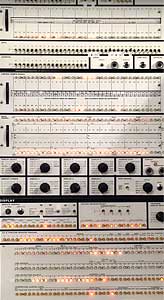
Eventually writing these machine language programs became my favorite pastime on slow nights.  Part of the draw was the maintenance panel switches which made it easy to read and write memory locations.  There was a definite thrill to getting a program working and watching its progress via the flashing lights on the maintenance panel.

For those who aren't familiar with low level programming, machine language programming involves directly entering the binary encoded instructions into memory locations for later execution.  More people are familiar with assembly language programming which replaced the binary programming with mnemonic names for the instructions and any modifiers.  For example, a Honeywell mainframe had an instruction called LDA which loaded the A (or accumulator) register with some value.  In machine language programming, that LDA instruction had the opcode of octal 235.  Older mainframes often used octal encoding instead of the hexadecimal encoding which is more often used today.  The other convenience offered by using assembly language over machine language is that the assembler would calculate the addresses automatically rather than forcing you to manually calculate the address offsets by hand which was painful.

My second job was as a field engineer for DEC PDP-11 minicomputers.  These smaller machines were so much less complex than the mainframes that fixing the hardware wasn't much of a challenge.  The saving grace was the PDP-11 instruction set was simple enough to allow me to quickly come up to speed on its machine language.  When I was in Boston for training, I wrote a machine language program to determine which terminal connected to the PDP-11 had had data entered on its keyboard.  Apparently the way I approached programming was different than most people's because the instructors had trouble figuring out how my program worked.

Believe it or not, the ability to decipher machine language is still useful when I have to use gdb to debug a program.

Tuesday, February 25, 2025

Configuring Windows/Mac/Linux for embedded development

A few days ago Scott Hanselman posted an interesting question on Bluesky.  He asked how much stuff people needed to add to Windows to make it useful for day to day work.  He also asked a similar question of Mac users.

Admittedly, my use case differs from that of most people.  I do embedded firmware development.  For me, my company Windows laptop mostly acts as a way to connect with the Linux build machines and target machines I use.  It's really little more than a glorified terminal except for running Outlook, Office, and Slack.

Windows

Having made the switch to a Mac at home 24 years ago, I only use Windows at work now.  On any new Windows machine, I first install the following software.  It's all free software as most companies I've worked for make it so difficult to justify the purchase of commercial software, that it's not worth the effort.

  • Gvim - I occasionally need to do some local editing on Windows and for that a graphical version of vi is an absolute necessity for me.  I've been using some version of vi for 35+ years and while I've had occasionally dalliances with other programming editors, I've always returned to vi.
  • VcXsrv - Being able to launch graphical applications remotely makes my life much easier.  That means using an X11 server.  I know there's pressure to move to Wayland but it strikes me as more effort than it's worth at this point.  It's the same feeling I have when I hear someone suggest that I try writing a device driver in Rust.  I just want to get work done, not spend time blazing a trail.
  • Putty - I need to connect via SSH or serial communications to a number of Linux machines (build servers, target systems, etc) and Putty is my hands down favorite way of accomplishing this.  I make sure to enable X11 forwarding on Putty SSH sessions because this allows me to launch GUI programs and have them display on my Windows laptop.
  • WinSCP - This allows me to easily copy files back and forth between Linux machines and my Windows laptop.  It also enables easy remote editing of files which reduces the pain of editing a file on a remote machine over a slow Internet link.

Mac

When I first started using a Mac at home, I loved the development environment which the combination of Mac OS X, Xcode, and the Quartz X11 server provided.  It was the best development platform I had seen since my days last using a Sun workstation in 1996.  Over time and Apple's push to combine features of iOS and Mac OS, it's become much harder for me to set up a reasonable development environment on the Intel Mac Mini which serves as my desktop machine at home these days.  Since most of my embedded development is done for work, that's not a deal breaker.

  • MacVim - As mentioned above in the Gvim section, I need to edit files locally on my Mac.  MacVim gives me a version tailored for use on Macs.
  • Homebrew - Unfortunately, many of the tools I've come to rely upon are only available through an alternate install path.  Homebrew gives me access to a number of development tools not available through the Mac AppStore.
  • XQuartz - This X11 server used to be available in the Xcode tools but now the best version seems to require being installed via Homebrew.
  • Unfortunately I have not found a free GUI SCP application for Mac I like yet so I resort to using the standard Mac Terminal app and the command line scp tool.

 Linux

I use a Raspberry Pi 5 at home since Linux is orders of magnitude better at interfacing with a variety of small embedded machines than either Windows or Mac are.  I typically use a pared down Linux distribution because I don't need the typical blend of applications like Open Office.  I've been using Debian Bookwork with the Xfce desktop environment.  

It's easy to install X11 apps, Gvim, and Putty on Linux.  The IT group at work has our Windows laptops very locked down so installing new software such as the GUI software for a USB protocol analyzer sometimes requires getting it approved which can take a few days.  Mac has gotten harder to run third party application software as well, much like the iOS app store which is very locked down.  Development goes so much faster when I can install any software I need without facing roadblocks.

Linux is also good at doing compiles for the firmware and application software I create for the newest embedded ARM device at work which is also an ARM 64-bit processor.  It has better USB support too.  Windows often requires the installation of device drivers for various USB serial devices which can be hard to do when using a laptop with limited admin rights.

Friday, November 29, 2024

A few of my favorite programming environments

In my 40+ year career in software/firmware engineering, only 3 of the computers I've used have had what I considered superior development environments.  This type of environment makes it easy to be more productive.

The first was the Sun 3/80 Workstation i used at work in 1990 while writing software for packet switching communications equipment.  It had a Motorola 68030 CPU which is still my favorite assembly language and offered good performance.  The Sun offered my first extended exposure to Unix and it was love at first sight.  Unix was mature by that time and the development tools were top notch.  The only possible drawback was it only had a monochrome display albeit a high resolution one.  I enjoyed the way it allowed me to define a default window layout so I could have 4 terminal windows in standard locations each time I logged on.

The second machine I thought offered a great development experience was the Apple PowerMac G4 I bought for home use in 2002.  It was purchased to replace a PC because I had grown tired of Windows XP plus I had picked up an iPod 10 GB music player which integrated much better with Mac machines than it did with Windows.  The PowerMac G4 ran OS X, a Unix like OS derived from NeXT's NeXTSTEP. It had a PowerPC G4 CPU which was my first exposure to the RISC architecture.  OS X came with the X11 (aka X Windows) window manager which was also used on the Sun workstation.  X11 enabled me to run many of the same tools I had grown used to using on the Sun.  At the time I was working for an optical networking startup.  Some of the boards in our networking equipment used PowerPC G3 and G4 CPUs so it was handy having one at home to experiment with.  The Mac also gave me an environment which was very close the the Sun I had started using 12 years earlier with the added benefit of supporting a color display.  I've come to love color syntax highlighting of source files.  I eventually made the switch to Intel Macs and then Apple's own CPUs.  Sadly, they also seem to be making Mac OS look more like the iOS used on their mobile devices at the cost of making it less useful as a development machine.

The third (and my current favorite) development environment I've considered exceptional is a Raspberry Pi 5 which runs a multicore 64-bit ARM CPU.  It still amazes me that I could built a reasonable development machine (8 GB memory, 500 GB SSD storage) for less than $200.  Since it runs Linux with X11, I'm once again able to run the same tools (or their successors) on this machine.  It integrates better with the small embedded ARM machines I write firmware for than does my work laptop running Windows 10 or my Mac Mini which runs the latest iteration of MacOS.  Sadly X11 is no longer easy to get running on the Mac.  I know some will think I need to migrate to Wayland but I rarely feel the need to use tools which aren't fully mature yet.

All of these machines have run Unix or Unix-derived OSes which has been my strong preference for 35 years now.  This allows me to edit source files using vi (now vim) which had a steep learning curve but rewards the initial effort by being fast and quite powerful.  Having ctags allows me to quickly jump from a reference in a source file to where the function or variable is defined.  I've used it for so long that it has become second nature to me.  I'm happy to be able to search my source code efficiently again using grep.  And I love being able to use a shell with a proper scripting language (currently bash but I've used sh, csh, and ksh in the past).  Best of all, I've still got good support for the C programming language which I view as a portable assembly language and which has been my favorite since I first learned it in 1985.

These aren't the only environments which can improve productivity.  I've worked with a few engineers who swear by Visual Studio or Eclipse and I've seen how both can help speed up common tasks.  However both have a sufficiently steep learning curve for me to ignore them.  I feel the same way about Emacs when friends point out its advantages over vim.  At this stage in my career, I'm not willing to make radical changes to a workflow I've been comfortable with for a long time at the cost of weeks to months of feeling less productive.

Wednesday, September 04, 2024

Sometimes it pays to be skeptical

I may have been born a skeptic.  I've been questioning things I was told for as long as I can remember.  I'm sure many of my teachers were happy to see me advance out of their classroom because of that.  In many situations that doesn't make you popular, however it can serve you well in an engineering career.

On occasion I've needed to be skeptical of things colleagues tell me.  Such misinformation was most prevalent when I was a field engineer (aka FE) 40+ years ago.  If you're not familiar with that title, it's basically a mechanic for computers.  In my first job in the computer industry, I worked on mainframes and minicomputers.  For part of that time I was a specialist which meant I got called in on difficult problems after other engineers had tried and failed to fix.  I started these visits by asking questions of the FEs onsite only to sometimes have them tell me that of course they had checked the things I was asking about.  I learned which engineers I could trust to admit they hadn't checked something which seemed a logical troubleshooting step.  The challenge with engineers I didn't know well or with those I knew were too proud to admit they had missed something was to suggest that we check something together which they had assured me they had done already without embarrassing them too much.

These days my skepticism allows me to discover the discrepancies inherent in technical documentation.  I don't recall ever seeing a chip datasheet which didn't have a few errors (or instances of wishful thinking on the part of the documentation team).  Accepting the idea that the documentation can be wrong allows one to move beyond seemingly impossible situations such as a device register which occasionally isn't as persistent as the manufacturer's docs suggest.  Software documentation is frequently more error prone than hardware documentation.  I don't think I've ever seen an API document without a few mistakes.

Comments in code is another area it's dangerous to trust blindly.  Engineers will often add extensive comments in code when a function is first created.  Subsequent revisions may not see those comments updated to reflect changes in logic.

That makes the world of engineering seem somewhat bleak.  How do we combat it?  For my part, I try to report errors I discover.  That doesn't always work.  I've reported errors in compilers my company has had to pay healthy amounts of money to license only to be told that the compiler is EOF (end of life) and that no errors would be addressed.  I couldn't even convince the vendor to add my discovery to the list of known bugs.  The thing which keeps me trying is occasionally someone at a vendor will be appreciative of having a bug reported.

Saturday, April 15, 2023

An easier way to edit remote files


My main development machine at work is an Ubuntu desktop machine which I've got set up with cross compilers and a number of other development tools.  It's reasonably fast but because it runs Linux, it can only be connected to our lab network at work.  This used to mean having to ssh into the machine to edit files which on a fast network with X11 forwarding means I can use a GUI editor.  However I've been noticing a maddening amount of network lag between our lab network and the corporate network which means I end up waiting several seconds for things like cursor movement to take place.  That can break my train of thought.

Fortunately I discovered that WinScp has the ability to not only transfer files between systems but it can also allow me to edit files on those systems.  I launch WinScp, tell it to connect to my development machines, navigate the the appropriate directory, right click on the file I want to edit, and select launch external editor.  It can be configured to use your choice of editors on the Windows machine where WinScp is running.

Once you make the request, WinScp transfers the file to your local machine and launches your editor of choice.  Once you're done editing, it transfers the updated file back to the remote system.  The actual editing all takes place on your local Windows machine so it prevents network lag from causing a painfully slow editing session.

Sunday, March 26, 2023

Showing differences between binary files

At work I'm having to port some firmware changes to a new board.  This requires I understand the boot process in excruciating detail.  The old board boots with 3 different files stored in flash memory (bootloader, bootloader environment, and Linux file system).  I have the files as well as several raw dumps of various areas in the flash memory chip made with the "dd" command and needed to know whether there was any magic done to identify the different partitions of the flash device.

So I needed to show differences between binary files.  I normally use meld for file comparisons but it doesn't handle binary files.  It's easy to write a simple program in C to show simple byte differences but I wanted something able to display context for any differences.

It turns out that this is very easy to do in bash thanks to the ability to easily combine tools.  This is made possible by the Unix Philosophy.  The following command does exactly what I was looking for.

meld <(xxd file1.bin) <(xxd file2.bin)

So I whipped up a small shell script to make this easier and I've got a new tool for future use.  As you can see from the image, the display would be helpful in figuring out the differences between files.


Monday, June 02, 2008

quick and dirty shell command

Today I was working on some old code at work. I discovered at least one duplicate include file which is a personal pet peeve. It's far too easy to allow multiple include files get out of sync so you have different versions for different source files.

What I needed was a quick way of finding all the duplicated include files within this project directory (and subdirectories). It turns out stringing together a few Unix/Linux/Mac OS commands with some I/O redirection makes this task pretty easy.

The first thing we need is to be able to locate all the include files. In the C programming language, these files typically end with the ".h" file extension. We can use the find command to give us a list of the files which end with .h.

The next problem to be solved is that the matching files will have not only their filenames but also the directory in which they're located printed out. So we need a way of extracting just the "base" filename. Fortunately bash has any easy method of accomplishing this with the basename command.

The next logical step in figuring out whether there are duplicate filenames is to sort the matching filenames to make it easier to see matches with the sort command.

Finally we can use the uniq command to show just the filenames which appear more than once. The uniq command has other options. You can choose to show just items which are unique as well.

If we put all the portions of this command together, we come up with the following command. It's doing a lot of work to save us the trouble of manually sifting through all the filenames ourselves. That's what computers are supposed to do for us, eh?

find . -name "*.h" -print | xargs basename | sort | uniq -d

Sunday, June 24, 2007

vi macros

Many years ago I learned vi, the visual editor which came with Unix. At the time it was one of two full screen editors readily available on nearly every version of Unix - the other being Emacs. For some reason, the vi commands seemed more intuitive to me. This was probably because I'd previously spent a fair amount of time using a PC editor distributed by IBM called "PE" (which stood for personal editor). In any case, it turned out to be a fortunate choice because vi quickly became available for every computing platform I used. Emacs was also ported to the same platforms but had higher resource requirements (memory and disk space) than I could afford on my hobbyist budget.

I wouldn't recommend anyone not already familiar with vi go through the steep learning curve to learn its somewhat cryptic commands. For those of us who have gone through that painful learning experience, the commands become second nature.

The end result is that I've been using vi for about 20 years and have come up with a few macros I use to save time. These are two character macros which help me perform various operations on blocks of text. My favorite vi port, vim, has many additional commands such as visual block commands which I use frequently. People learning vim and not needing to switch back to a more standard version of vi will probably not find these terribly useful. However I sometimes still need to edit files on Sun servers where vim is not readily available, so I find my macros pretty handy.

Here's a list of the block macros I use most often.

\m - marks beginning of line block
\y - yanks from beginning of line block to current line
\d - deletes from beginning of line block to current line
\p - pastes block previously yanked or deleted to current line
\i - indent block by shiftwidth
\I - indent block by 1 character
\u - unindent block by shiftwidth
\U - unindent block by 1 character

Here are the actual macro definitions. In the following definitions, the ^M is entered by typing a Control-V (which causes the next character to be entered without any special processing) followed by a Control-M (also known as a carriage return).

" delete lines (from mark to cursor pos. - uses b mark, b buffer)
map \d mb"ad'a`b
" indent one shiftwidth (which I have set to 4 characters)
map \i :'a,.>^M
" indent (1 char)
map \I :set sw=1^M:'a,.>^M:set sw=4^M
" mark beginning of a line block (uses the a mark)
map \m ma
" paste lines previously yanked or deleted at cursor pos.
map \p "aP
" unindent one shiftwidth (4 char)
map \u :'a,.<
" unindent (1 char)
map \U :set sw=1^M:'a,.<^M:set sw=4^M
" yank lines (from mark to cursor pos. - uses b mark, b buffer)
map \y mb"ay'a`b